

 |
| Gatsby component |
Create Gatsby Component
Inside the /components/ directory of your Gatsby Default Starter-based project, create a file and call it paragraph.js.
Open paragraph.js in your code editor and enter the following code:
import React from "react"
import ParagraphStyles from "./Paragraph.module.css"

const Paragraph = (props) => <p className={ParagraphStyles.fancy}>{props.paragraphText}</p>

export default Paragraph
This is a simple React functional component — nothing new except for the statement that imports the paragraph CSS module, which we haven’t created yet.
The component uses the styles contained in the fancy-paragraph module as a value inside the className property. As you can see, that value looks very much like a regular JavaScript object that uses .paragraph, which is the name of the class, as the ParagraphStyles object’s property. You’ll write the styles for this class in your CSS module.
Create the Fancy Paragraph CSS Module
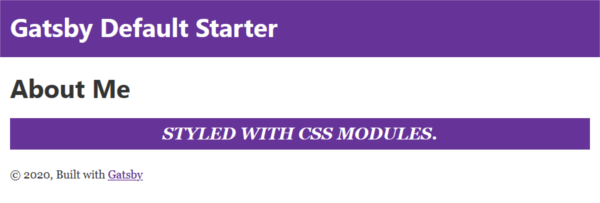
Inside /components/, create another file and call it paragraph.module.css. Open this file and style the .paragraph class any way your fancy takes you. It’s just regular CSS. This is what mine looks like:
.paragraph {
  font-size: 1.5rem;
  text-align: center;
  line-height: 1.2;
  padding: 0.5rem;
  color: #fff;
  background-color: rebeccapurple;
  font-weight: 800;
  font-style: italic;
  text-transform: uppercase;
}
Now, you’re ready to use your Paragraph component with your fancy styles anywhere on your Gatsby site.
Let’s add a fancy paragraph to your About page.
Add the Fancy Paragraph Component to the About Page
Start by adding these two import statements to your About page, just below the already existing React import:
import Layout from "../components/layout"
import Paragraph from "../components/paragraph"
The snippet above makes the Gatsby Layout component, which you’re going to use in your About page, and the Paragraph component you’ve just created available to your About page.
Next, modify your AboutPage functional component to look like this:
const AboutPage = () => (
<Layout>
 <h1>About Me</h1>
 <Paragraph paragraphText="Styled with CSS Modules." />
</Layout>
)
Your new component works just like any other React component. Simply slap it on the page, in the exact location you want it to appear, and you’re done. This particular component leverages React props to make the paragraph text more dynamic.
Save your work and navigate to the About page, where you should see your fancy paragraph in all its glory. Mine looks like this:

0 Comments